
Knowledge Base
General Information
"Spare-In-The-Air" is an extremely affordable service solution for companies that cannot afford to have their systems out of service for longer than 24 hours.
This quick, overnight replacement program bridges the gap between the turn-around time of depot repair and the higher cost of on-site service. Make one phone call to Epson and a replacement unit is express-shipped overnight to arrive the next day. Then just return the damaged unit to Epson. It's that easy. And shipping both ways is always on Epson.
Important Information:
- You have up to 3 months after the purchase of your printer to buy into the SITA
program. The years of coverage you want have to be bought in those first 3 months.
They cannot be added to or renewed at any time after the 3-month period.
- You can buy 1, 2, or 3 years of SITA program coverage for your printer.
- Extended warranties do not have to be bought in conjunction with the SITA
program. You either buy one or the other.
When ordering a custom tag or label and proof is requested, PDF Proofs will sometimes not scale exactly depending on the settings and inherent limitation of the software, but the finale produced label will have the correct dimensions.
Currently, WestHort does offer a GHS label solution that incorporates the BS5609 approval requirement for self-adhesive labels on drums of chemicals which in turn need the International Maritime Dangerous Goods (IMDG) certification.
Yes, for the State of Washington and California, only for products used in operations.
Marijuana processors, producers and retailers may use a reseller permit when making purchases for resale.
For example:
- Labels, Inks Tags
- Products that physically become part of the article for sale.
Reseller permits are not intended for use on purchased products or equipment that will be used by the manufacture.
Coming Soon!
Coming Soon!
Printer Support
When printing to our EnviroStake (PPSP series) and UltraStake (USP series) family of Pot Stakes, heat and speed settings are often not set optimally.
If you are experiencing print quality issues, please apply the following settings:
For BarTender users: The Heat setting should be increased (this is the number one overlooked setting). A good range to try is 19-24. Experiment until you achieve good results. Next - Print, Slew and Feed settings should be 3.00 in/sec. Backup should always be a lower value than Print, Slew and Feed. Set to 2.00 in/sec.
For NiceLabel users: The Heat setting is labeled as "Darkness" and you have only one setting for Speed. Adjust following the above guidelines.
It is always a good practice that when printing Pot Stakes to print at a slower speed. Another benefit, slower print speeds can lead to less alignment problems.
Does the C7500 support Continuous paper with no marks?
Answer: Yes.
What Media forms are supported?
Answer: Die-cut Label (Gap), Die-cut Label (BlackMark), Continuous Label (BlackMark), Continuous Paper (BlackMark).
Will the C7500 accept media with a Die-cut Hole?
Answer: Yes.
Can you print labels with “Full bleed”?
Answer: Technically yes. However, in our testing, we found that though the printer is very precise there was some ink deposited on the backing. Over time this could lead to problems, especially if the media being used has a poly backing.
What types of media are supported?
Answer: Plain labels, Matte labels, and Synthetic Labels.
I have noticed that in the Manual Glossy paper is not supported for the C7500 but is for the C7500G series. So gloss paper will not work?
Answer: Though Gloss paper is not listed, it will work in the C7500. In our testing, we have had outstanding results on gloss paper. One thing to consider: if you are going to use “ Ultra” glossy paper the C7500G is the better option due to its use of a different ink formulation that dries faster.
When Fanfold paper is loaded and fed through the printer an error occurs.
Answer: As Fanfold paper is thicker than roll paper, the gap may not be detected. We recommend using fanfold paper with Black Marks.
Coming Soon!
How do I factory reset the WS4?
Answer: Access the SATO Help Center to find the specific procedure to restore default settings, often via the printer utility or button combinations.
How do I calibrate the media sensor?
Answer: If labels aren't feeding correctly, reset the printer and calibrate the sensor to detect labels properly.
What should I do if the print quality is bad?
Answer: Clean the printhead with appropriate cleaning kits, avoiding water to prevent corrosion, and ensure the ribbon/labels are loaded correctly.
How do I factory reset the WS4?
Answer: Access the SATO Help Center to find the specific procedure to restore default settings, often via the printer utility or button combinations.
How do I set up the WS4 with UPS WorldShip?
Answer: Install drivers, disable "Bidirectional Support" in printer properties, select the printer in WorldShip, and choose "Other" for printer type.
How do I run a test print?
Answer: With the power off, hold the Feed button while turning the printer on, waiting for specific LED color changes (Green/Orange) to print a configuration label.
Where to find software?
Answer: The SATO WS4 Utility is used for firmware updates, configuration, and diagnostics.
Is it compatible with different ribbons??
Answer: Yes, the WS4 supports 0.5-inch and 1-inch core ribbons, both wound-in and wound-out.
Is it compatible with different ribbons??
Answer: Yes, the WS4 supports 0.5-inch and 1-inch core ribbons, both wound-in and wound-out.
***Visit SATO America's official support page for manuals, setup guides, videos and additional resources by clicking HERE.***
*** Visit the official support page for manuals, setup guides, videos and additional resources by clicking HERE. ***
Software
Need help moving your software license to a different or new computer?
Visit the link below for step-by-step instructions!
Click Here: How to Move your Software License
Upon creation of a new BarTender Template, it is important that certain print settings are adjusted correctly. The Default settings often do not achieve acceptable print quality when printing to nursery stock. This guide will walk you through the process of adjusting those Key settings.
NOTE: When working with Datamax printers and BarTender, always adjust printer settings through BarTender and NOT through the printer's menu interface.
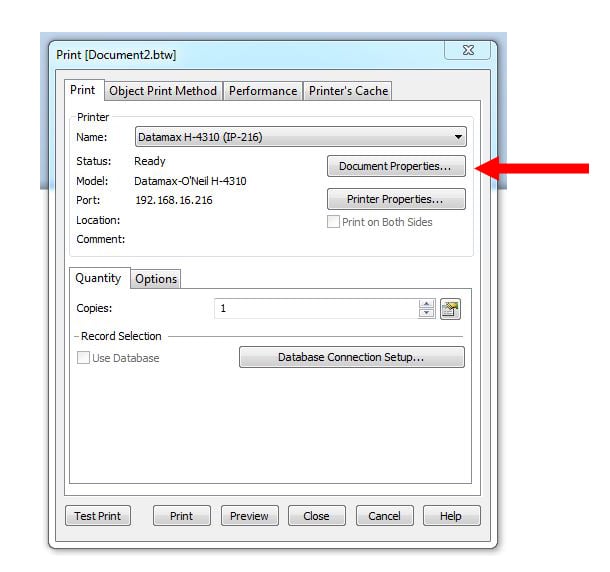
Begin by creating the BarTender template you need. With that done, open the “Print Dialog” window within BarTender (Click on the print icon located in the upper left portion of the tool bar) Do not use Window’s control panel or the print driver to change any settings.
Step 1: Click on “Document Properties”.
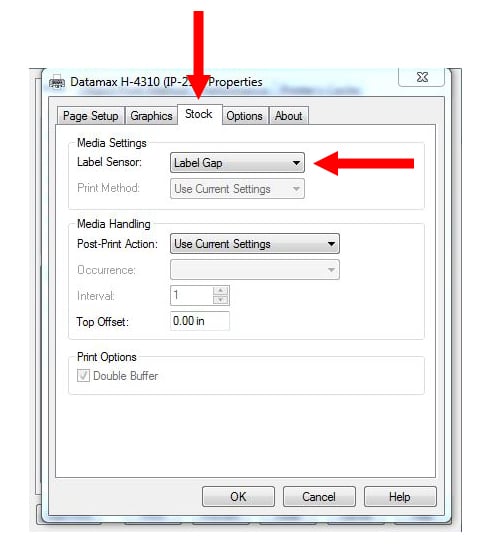
Step 2: Click on the “Stock” tab.
BarTender needs to tell the printer specifically what Label Sensor setting to use that reflects the stock being printed on. Example:
• Disabled (used for continuous stock).
• Label Gap (used for Die-cut or notched stock).
• Label Mark (used for stock that has a Blackmark).
NOTE: If left at the default setting of “Use Current Settings”, most likely you will encounter labels that “skip” during imprinting. For instance, two labels might print followed by three of four labels that do not. If you have labels that skip, always check this setting first. Most nursery stock incorporates “Notched” or “Hole” punch material, so the Label Sensor needs to be set at “Label Gap”.
Step 3: Click the “Options” tab.
Adjust the following fields as shown. When printing thicker material, such as pot stakes and wrap arounds, a slower speed is recommended. Thick material at high print speeds can cause alignment and print quality problems.
The print head temperature setting can vary greatly depending on the stock being printed on. A good range to start is between 19 – 24. If print looks faded, experiment with higher temperatures until desired results are achieved. If print is dark with a slight smearing of edges or lines, the temperature is set to high.
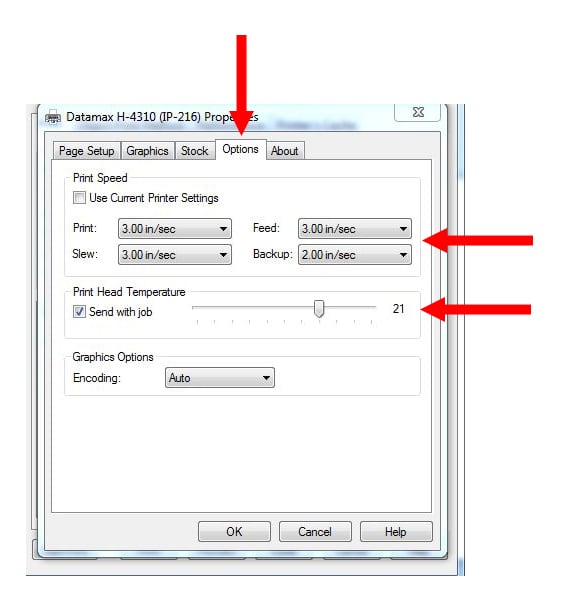
NOTE: To help protect the life of the print head always print at the lowest possible heat setting that yields the desire print quality.
Hit “Ok” and save your template to keep changes.
You are now good to print!
BarTender
· Tutorials: https://support.seagullsoftware.com/hc/en-us/articles/9926265797143-Getting-Started-with-BarTender-Software
· Drivers: https://www.bartendersoftware.com/resources/printer-drivers
NiceLabel
· Tutorials: https://www.loftware.com/customer-center/academy
· Drivers: https://drivers.loftware.com/